
Artist Workflow
Getting Started as an Artist
Workflow refers to the organized sequence of tasks, processes, and steps involved in producing a project, from the initial concept to the final output.
For example, within an animation production, tasks such as Modelling, Rigging, Shading are undertaken to finalize an asset
TIP
Processes such as modelling, shading, etc., are referred to as Task Types.
Tasks are the fundamental components of larger projects or processes. They help organize and manage work efficiently, breaking complex endeavors into manageable pieces.
Once the workflow for tasks is defined, the next step involves establishing a Review Workflow, which entails defining all the statuses utilized for communication within the team. Statuses will also be useful for tracking the progress of your production.
The Workflow of your production comprises the combined Tasks and Statuses.
Initial Set up and profile customization
Create a Clustta account
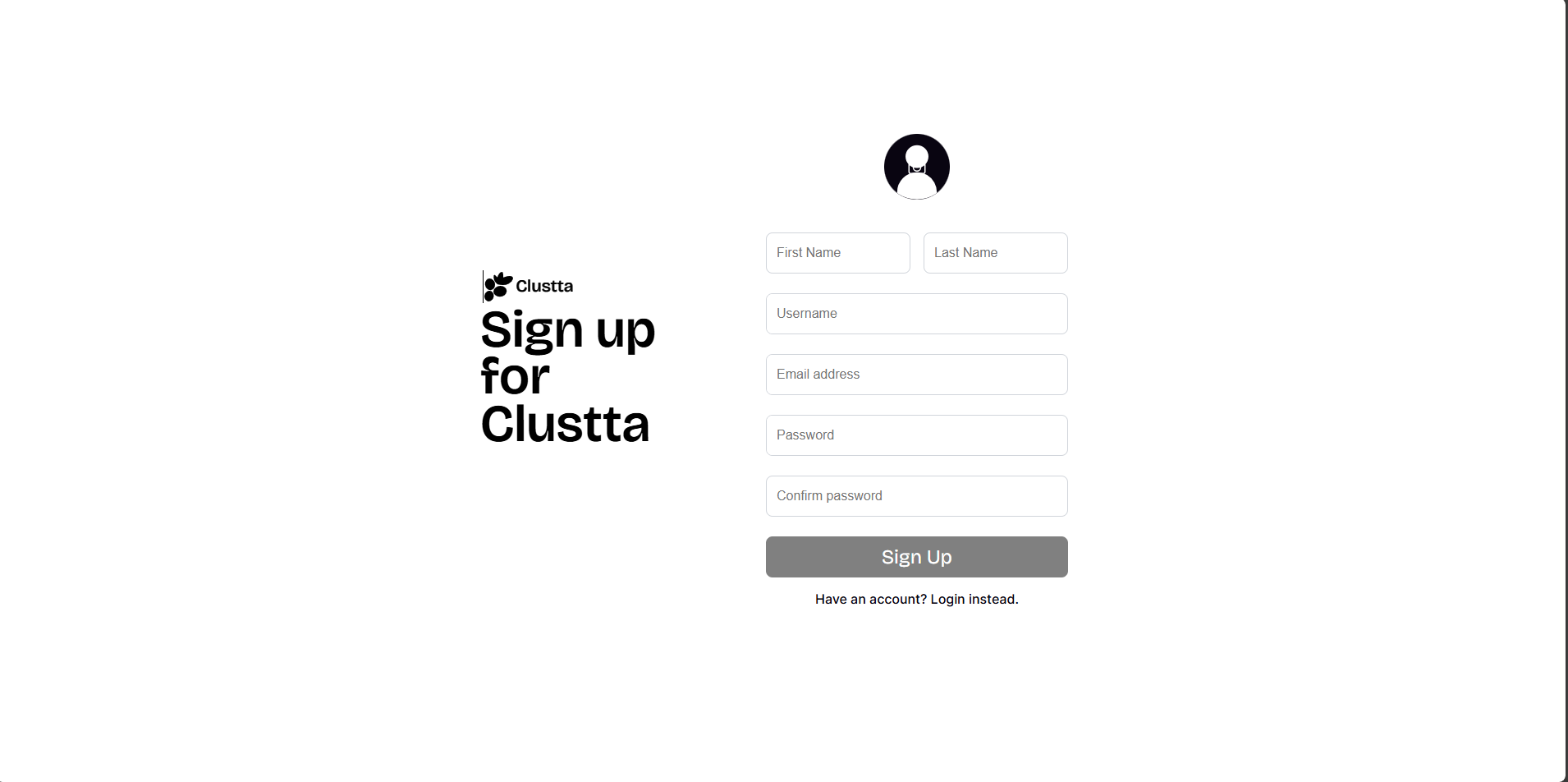
Once Clustta is installed on your system, visit the official Clustta website and create an account by providing the required details.
Creating a Collection
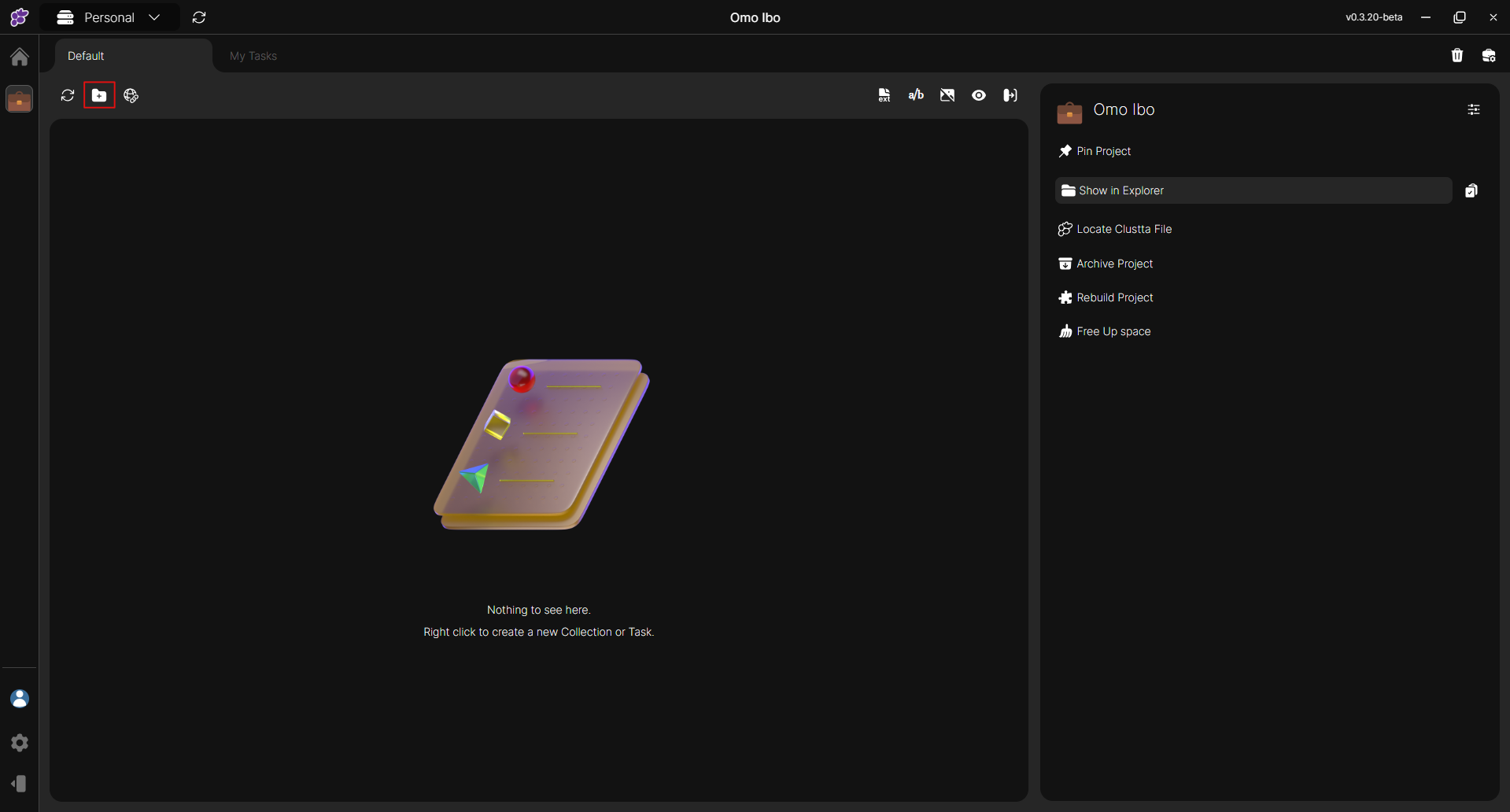
Next, let's create all the Collections needed to manage and track our production. Collections could be associated with multiple entities such as assets, shots, sequences, episodes, or edits.
TIP
By default, Clustta provides some example Categories that can be used for a CGI production. Project collections can be customized to suit any type of project you're working on. You can edit them to reflect your preferred Tag names.
You can also create tasks within each collection you establish. This helps you filter tasks based on their collections, making it easier to track what you're working on and where each task belongs.
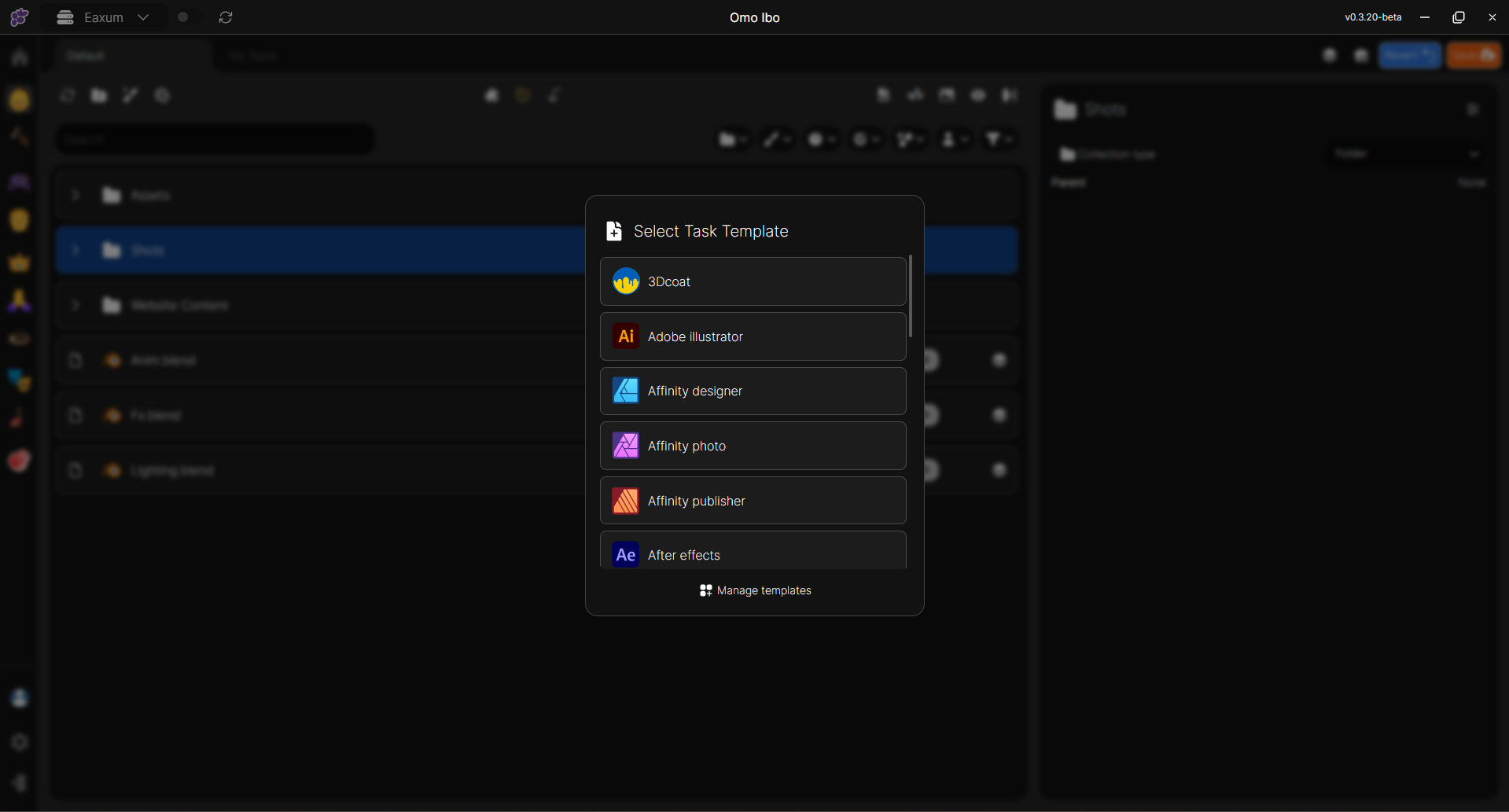
You can click on the Create new Task button to create new Task.
TIP
After clicking the Create new task button, you will be prompted to select a Task template. This feature offers various templates tailored to your preferred project type.
Project files must be Rebuilt for your task to be accessible. Without this step, your task file will remain missing.
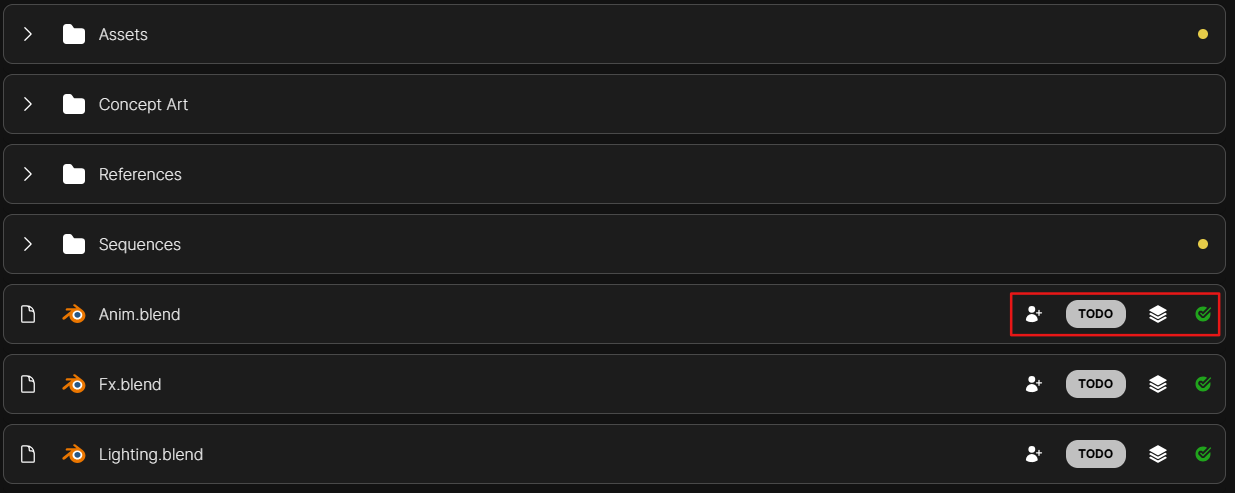
Upon creating your task, the options highlighted in the image above are further features provided to give your task the following information:
Task status: Refers to the current stage or condition of a task within a workflow or project. It indicates the progress of the task, showing whether it is pending, in progress, completed, or requires further action.
Task Assignee: This is the person or entity responsible for completing a specific task within a project or process. When a task is assigned to an individual (the assignee), they are held accountable for ensuring that the task is completed within the designated time frame and according to the required specifications.
Checkpoint: This refers to the chronological record of all actions, updates, and changes made to a specific task from its creation to its completion or closure. It provides a detailed log of key events such as assignments, status updates, progress notes,comments, and modifications.