
Trash & Recovery
Clustta soft-deletes everything. Collections, assets, checkpoints, asset templates - all of them go to Trash before they're actually gone, giving you a recovery window for accidents.
What goes to trash
- Collections (and their entire contents recursively)
- Assets
- Checkpoints (deleted individually from the history)
- Asset templates
- Workflows
A deleted item:
- Disappears from the normal browser view
- Stops appearing in lists, searches, kanban boards
- Stays in the project database, marked as deleted
- Can be restored at any time before purge (usually on the next sync).
Viewing trash
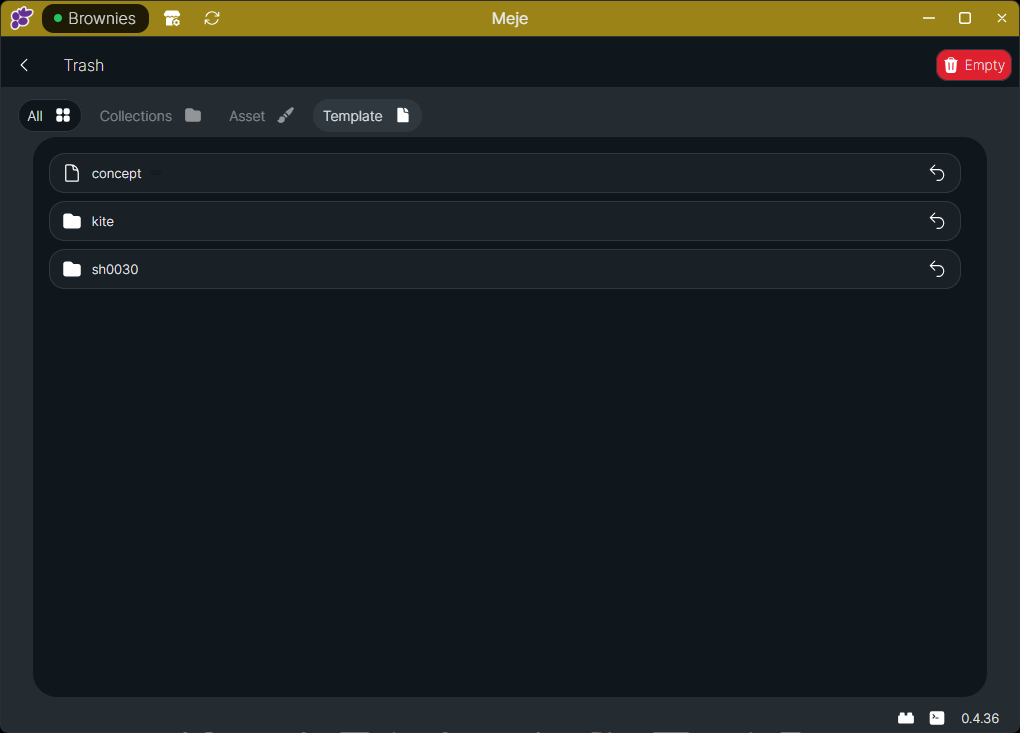
Click the Trash icon in the project's top action bar. The trash view lists every soft-deleted item, when it was deleted, and by whom.
Restoring
Click the revert/undo icon beside an item in the trash to restore it. It comes back exactly where it was - same parent collection, same metadata, same history.
If you delete a parent collection, restoring it brings the entire subtree back. You can't restore individual items from a deleted parent if you only want part of it back.
Permanent deletion
Items in trash are permanently removed:
- When you manually Empty Trash in the trash view
- On Project Sync when you manually sync the project
Once permanently deleted:
- Manually emptying the trash removes local chunks that are no longer referenced by any surviving checkpoint or asset template. Chunks still used elsewhere are preserved.
- Sync removes the trashed records, but does not run the same unused-chunk cleanup. Any orphaned local chunks are reclaimed the next time you manually empty the trash or use Trim Project.
- The item is gone from both your local database and the server.
- It cannot be recovered.
Local file vs. tracked record
There's an important distinction:
- Delete (
Shift+Delete) - Sends the asset/collection record to trash. The local working file is removed. Recoverable. - Free Up Space (
Delete) - Removes only the local working file from disk. The asset record stays. Re-downloadable. Useful for clearing space when you're done with a heavy asset.
Free Up Space is non-destructive - it's just "I don't need this file on my disk right now." Delete is the actual remove-the-thing operation.
| Shortcut | What it does |
|---|---|
Delete | Free up local file (keep history; can re-download) |
Shift+Delete | Soft-delete (send to trash) |
| Trash > Empty | Permanent removal |
Why soft delete exists
In production, accidents happen. A wrong drag, a misclick, etc. Soft delete means those mistakes are much easier to rectify.
Combined with checkpoint history, Clustta gives you several layers of safety:
- Modified state - your last-saved-but-not-checkpointed work. Survives until you intentionally revert.
- Checkpoint history - every save you've ever made. Survives until checkpoint is individually deleted.
- Trash - every deleted asset/checkpoint. Survives until trash is emptied.
- Backups of
./projects(self-host) or studio backups (cloud) - survives total disaster.
Consequentially, losing/deleting a file should be a very intentional operation.